显示标签为“itunes rentals converter”的博文。显示所有博文

2017年6月28日星期三

$0.99 movie rental of the Week on iTunes - lion 2016

You can rent the movie Lion (2016) in $0.99 from iTunes Store. That's to say, you can get the Lion full movie in 99 cents easily. You can see the movie official trailer below.


Lion (2016) Movie Summary 

Lion is a 2016 biographical film directed by Garth Davis (in his feature debut) and written by Luke Davies, based on the non-fiction book A Long Way Home by Saroo Brierley with Larry Buttrose. The film stars Dev Patel, Rooney Mara, David Wenham and Nicole Kidman.

lion-2016
Five year old Saroo gets lost on a train which takes him thousands of miles across India, away from home and family. Saroo must learn to survive alone in Kolkata, before ultimately being adopted by an Australian couple. Twenty-five years later, armed with only a handful of memories, his unwavering determination, and a revolutionary technology known as Google Earth, he sets out to find his lost family and finally return to his first home.

Lion (2016) Movie Review

If you are human, there is no way that Lion won't move you. This movie get a lot of good movie reviews listed below.

lion-sunny-pawar
  • "Lion" is a complex movie, with its profound themes of home and identity, and its tonally disparate halves. A smartly understated approach to Brierley's story holds it all together. – Stephanie Merry, Washington Post, Dec 23, 2016
  • Lion is a beautifully told, uplifting story of courage and determination. – Richard Roeper, Chicago Sun-Times, Dec 23, 2016
  • Lion represents a commitment from those involved and, flaws aside, it's an amazing tale of resilience and determination. – James Berardinelli, ReelViews, Dec 27, 2016
  • Its themes are universal. Everyone has a home, and everyone feels connected to it, no matter how far they travel. – Adam Graham, Detroit News, Dec 23, 2016
  • Lion represents a commitment from those involved and, flaws aside, it's an amazing tale of resilience and determination. - James Berardinelli, ReelViews, Dec 23, 2016

How to Rent Lion 2106 from iTunes Store

iTunes offers the weekly $0.99 movie rental - Lion (2016) via the iTunes Store.
How to find the $0.99 iTunes rental and rent it? Just launch the iTunes, and  pull down the window, you will find the Limited- Time Prices. You will find the Movie of this week ($0.99 Rental).
limited-time-price
lionNow click the movie Lion, and you will find the Rent section under the Buy button. Click on the rental price and enter your Apple ID password if required.
If you rent Lion 2016 movie on your Mac or PC, you can watch it on your computer or sync it to your iPhone, iPad, or iPod. You can sync your iTunes rental back and forth between your iOS device and computer, but it can only be on one device at a time. If it's on the computer, you'll see a tab for Rented Movies you can click on.
After you start to playing the rented movie, you have just 24 hours to finish it (in the U.S.; it's 48 hours in the rest of the world). If you don't finish watching in that time, the movie will expire and you'll need to rent it again. Besides, You have 30 days from the day you rented the movie to watch it.


Watch Lion 2016 full movie freely with M4V Converter Plus

If you want to keep iTunes rent movies longer, you can go to try M4V Converter Plus. It is a powerful iTunes Rental Converter for Mac and Windows users. With it, you can convert iTunes rented movies to almost popular mobile devices you own. Now see the detailed tutorial below to tell you how to remove DRM and convert iTunes rent movies to unprotected video formats as you need.
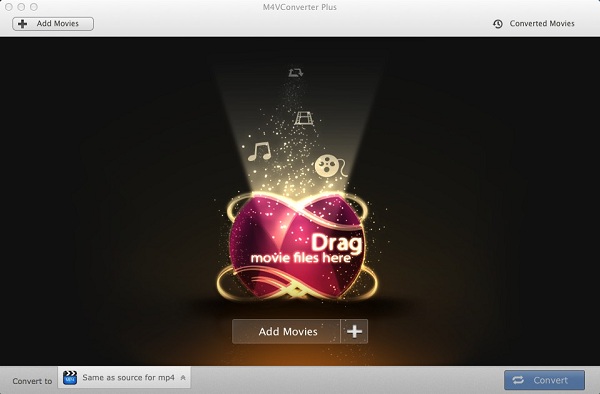
Step 1. Download M4V Converter Plus, install and launch it on your computer. You can see the clean and simple user interface as below.
Note. It compatible with Mac and Windows platforms. You can download it by clicking the download button below according to the platforms you use.

download-win   download-mac
interface1
interface
Step 2. Import the rent movie Lion 2016 to the program by clicking the Add Movies button.
add-rentals
add-rentals
Step 3.  Set output format.
For Windows users, click the blue profile panel to select output format. You can also choose Lossless MP4 by default.
mp4-output2
Mac users can click Convert to drop-down list, choose Same as source for mp4/mov.
mp4-output
Step 4. Start the iTunes rent movie to MP4 conversion. There is a little different between Mac and Windows platform.
Windows users click the blue panel again, and Mac users click Convert button. The program will do the rest for you automatically.

Related Topics

Remove 24 hours' Limitation for iTunes Rented Movies
Everything you need to know about iTunes Rentals
How to Convert iTunes Purchased movies easily

2017年3月27日星期一

M4V Converter Plus is rolling out the new version while Apple releases iTunes 12.6

iTunes movie rentals finally work across multiple devices

In addition to new iPhone and iPad updates, Apple has released iTunes 12.6 with a new feature for movie rental playback. Described as 'rent once, watch anywhere', Apple says you can now rent a movie on one device then finish watching it on another device.
Previously, it was possible to rent from iPhone, for example, then be restricted to that device to finish playback.
itunes_12.6
The new 'watch anywhere' feature for rentals appears to require iOS 10.3 and tvOS 10.2 however, although iOS is currently in developer and public beta and tvOS is only available in developer beta previews. Both software updates are likely coming soon for all users based on previous beta cycles as well as this iTunes release.
Apple still enforces time limits on watching rental movies as detailed here, however, but the new 'watch anywhere' function is a nice step forward. iTunes 12.6 is available as a free update through the Mac App Store.

Watch iTunes rentals anywhere with M4V Converter Plus

In order to support the latest version of iTunes 12.6, M4V Converter Plus Inc. has announced new version of iTunes Rental Converter  - M4V Converter Plus for Windows and Mac. 
M4V Converter Plus can remove DRM protection from iTunes rented movies and allow you to play iTunes rentals on Apple devices, Android devices like Samsung Galaxy 7, LG V20, HTC, Google Nexus, Huawei P10 , Galaxy Tab 3, Sony PS4, Xbox One, etc.
M4V Converter Plus for Windows has been released its new version 5.3.1. The new features including Fix the registration crash, support iTunes 12.6, optimize the details of the user interface, add Feedback function, and add iCloud Movie window, fix some bugs.
add-rentals
M4V Converter Plus for Mac  can also support iTunes 6.
add-rentals

How to run M4V Converter Plus under iTunes 12.6

Starting with macOS 10.11 (El Capitan) , Apple has introduced System Integrity Protection (SIP). This may prevent M4V Converter Plus to running.
If you are the macOS 10.11 or later users with iTunes 12.6 installed , you need to do some settings to make the software work.
There are 2 ways to make M4V Converter Plus for Mac work successfully.

Guide of converting iTunes Movie rentals for playing anywhere

Free download M4V Converter Plus for Mac or Windows on your computer, install and launch it. 
Step 1. Click Add Movies button to import iTunes movies to the program.
Step 2. After added the movies, you can choose a proper output format as the devices you own.
step 3. Start the conversion.

Related Topics:

2014年11月18日星期二

How to convert iTunes movie rentals on PC


The iTunes DRM can help protect movie-makers from piracy. But for Mac users who want to play iTunes rental or purchased videos on other devices, the DRM will be disfavored as it prevents them from fully accessing to those videos. And iTunes movie rentals can only play on a single device in the limited time.
A professional iTunes DRM removal tool M4VConverter Plus for Mac can not only get rid of DRM protection from iTunes purchased , but also can remove DRM from iTunes movie rentals on PC. It can convert protected M4V files with high output quality for playing on portable devices like iPod, iPad and iPhone.
Step 1: Add Rental videos
Click the Add Movies button or Add Files icon, and select the Rental files to add. Also you can add videos through the menu item File->Add Files. The adding window shows all playable protected m4v videos which are your purchases and rentals from iTunes library and iTunes Media.
Or drag the protected m4v videos to the list directly from your disc or other location to select the files you want to import.

Tips: You can click the Remove button or the menu item File->Remove Files to delete the files you choose. And you can also drag deleted directly from the list or delete from keyboard.
Step 2: Set the profile
Click Convert to button and select the output file format in the drop-down list. The profile includes all kinds of video and audio formats. And Recently used icon  shows 7 profiles used recently and 2 default profiles (Same as source for mov, Same as source for mp4).

You can select all the files (Alt + A) then choose the profile to set all the files into the same profile. In addition, you can set a different profile for each file by clicking the each file profile.

Step 3: Set the destination
Click the menu Preferences- General to click … button and change the output folder. You can also just use the default output directory /Users/ user/ Documents/ M4VConverter Plus.

Overwrite Files While Converting: If checked, the output file with the same name will be overwritten in the output folder.
Step 4: Start the conversion
Click the button Convert (Or do this through the menu item Controls->Convert) to open the converting box and start converting. At the same time, iTunes will be launched.

Note: Before converting, make sure your computer is well authorized with the same Apple ID that you used when downloading the iTunes movies.
Warning: Before the status show converting progress, iTunes will be shown and hide itself in a flash, and please don't do anything with iTunes during converting, conversion may failed by occurring an error.
Tips: You just need to click the Stop button or the cancel icon to stop the conversion. At the same time, iTunes will be closed.
Step 5: Finish the conversion
When the conversion is completed, the Rental files with DRM removed will be saved automatically in the history records. Click the History button to show up the records.


Click the button Show All to manage the records. The history records list according to the profile.
In addition, you can also find a professional iTunes DRM removal tool M4V Converter Plus On Windows.

2014年9月1日星期一

How to convert iTunes movie rentals on PC


The iTunes DRM can help protect movie-makers from piracy. But for users who want to play iTunes rental or purchased videos on other devices, the DRM will be disfavored as it prevents them from fully accessing to those videos. And iTunes movie rentals can only play on a single device in the limited time.
A professional iTunes DRM removal tool M4VConverter Plus for Win can not only get rid of DRM protection from iTunes purchased , but also can remove DRM from iTunes movie rentals on PC. It can convert protected M4V files with high output quality for playing on portable devices like iPod, iPad and iPhone.
M4VConverter Plus for Win can convert purchased iTunes movie rentals from iTunes as follow.


Add iTunes movie rentals
Please click the Add or Add Movie button, then the Add Movie window with Movies as default pops up. 


Click the Sources drop-down list to select Rentals and the iTunes movie rentals will display in the below list.


Then you can select the iTunes movie rentals and click OK button to add. You can also drag purchased iTunes movie rentals to the list directly from your disc or other location. The selected iTunes movie rentals will be added in the main list.

Customize output format
Choose the files in the list and click the Convert to drop-down list to choose the output format.
 
You can select all the files (Alt + A) then choose the profile to set all the files into the same profile. In addition, you can set a different profile for each file by clicking the each file profile.

Customize output path
Click the ... button to customize output path. You can also just use the default output folder M4V Converter Plus


Start the conversion
Click CONVERT button to start converting. Then the Progress window pops up.

Make sure your computer before converting is well authorized with the same Apple ID that you used when downloading the iTunes movies.
Before the status show converting progress, iTunes will be shown and hide itself in a flash, and please don't do anything with iTunes during converting, conversion may failed by occurring an error.
Check History Records
When the conversion is completed, the iTunes movie rentals with DRM removed will be saved automatically in the history records. Click the History button to show up the records.