The best M4V to web video converter – M4V Converter Plus can help you. With it, you can convert iTunes movie purchases & rentals to html 5 MP4 video, flash, SWF, and you can also convert iTunes protected M4V to YouTube, Facebook, Daily motion, Flickr and other video website compatible video format.
In addition, M4V Converter Plus is also a M4V to MP4/MOV/AVI/WMV/AAC/WMA Converter. With clean, simple, easy-to-use interface, it can remove DRM protection from iTunes movie purchases and rentals, then convert them to unprotected MP4/MOV/AVI/WMV/AAC/WMA, etc.
How to convert iTunes movie rentals & purchases to Facebook, Daily Motion, YouTube
STEP 1: Free download M4V Converter Plus.
STEP 2: Install and launch it, you will see the easy-to-use interface.
 |
| Interface of M4V Converter Plus for Win |
After you have installed M4V Converter Plus free trial version, you can only convert 3 minutes of each videos you want to convert. If you have bought a license, and have got your key code. You may click here to read how to register to be full version.
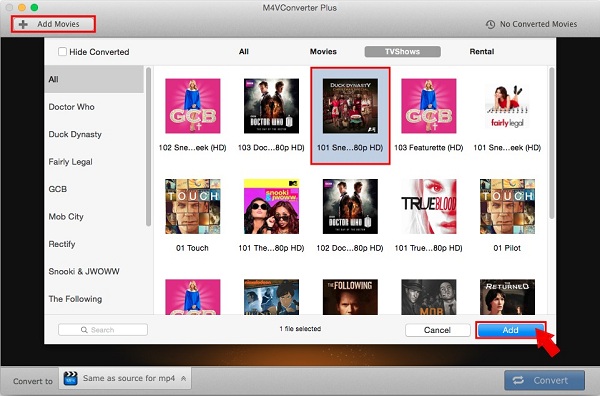
STEP 3: Add the M4V files to convert
You can click the “Add Movies” button in the top-left to add the video files you want to convert. The software will open the iTunes movies library by default. Select the files and then click “OK“.
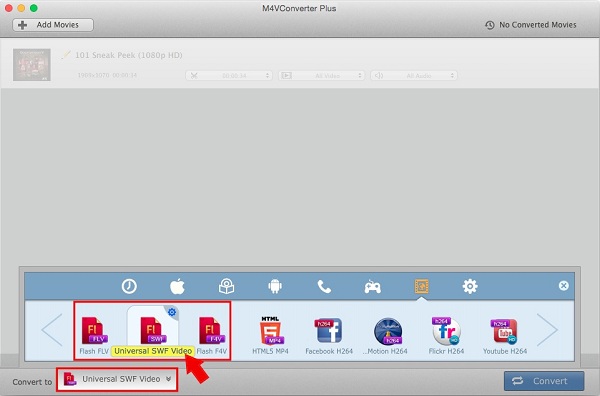
STEP 4: Set the output format
In the “Profile” drop-down list, the software supports multiple output formats, select the “Web video“. The video format you can choose include: Universal Flash Video Movie, Universal SWF video, Universal Flash F4V video, html 5 MP4 video, Facebook H264 video, Daily Motion H264 video, Flickr H264 HD video, etc. Of course, you can also set the output files parameter and other settings before conversion.
 |
| Output format settings |
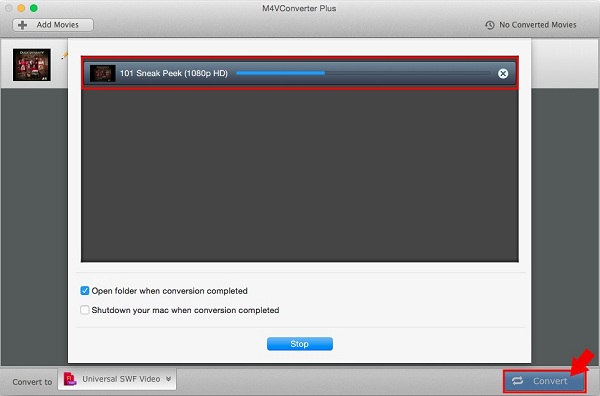
STEP 5: Click “Convert” to start converting M4V to web video .
M4V Converter Plus official website: http://m4vconverterplus.com/
System Requirement:
Windows XP or later version
Mac OS X 10.8 or later version