显示标签为“convert m4v to mp4”的博文。显示所有博文

2016年11月29日星期二

How to transfer iTunes movies to iPhone 7 Plus

All-new dual 12MP cameras. The brightest, most colorful iPhone display ever. The fastest performance and best battery life in an iPhone. Water and splash resistant. And stereo speakers. Every bit as powerful as it looks—this is iPhone 7 Plus.
iphone-7-plus
With a 1080P resolution screen, iPhone 7 Plus is an amazing video player for watching movies and TV shows, which will bring you better visual video effect.
If you are a user of iTunes, you will find it is difficult to transfer iTunes movies to your iPhone 7 Plus. You must download the purchased movies to your phone or rent the movie on your phone directly. iTunes Rentals will disappear when movie expires. Once starting playback movie, you will only have 24 or 48 hours for watching. How inconvenient it is! In this following article, we will show you the easiest way to transfer iTunes movies to iPhone 7 Plus for playing anywhere.

Easiest Way to Convert iTunes movies to iPhone 7 Plus on Mac OS

M4V Converter Plus is a powerful iTunes to iPhone 7 Plus Converter. It provides the easiest way to convert iTunes movies to the formats iPhone 7 Plus support. You only need to drag and drop the iTunes video files to the program interface and then convert them to iPhone 7 Plus. It supports batch conversion, you are able to import several iTunes videos at same time. This program will convert them one by one. Now follow the guide to learn how to convert iTunes movies to iPhone 7 Plus easily.
Step 1. Free download  M4V Converter Plus on your Mac, install and run it. It has a trial version that you can only convert one minute for each iTunes video.
8af10af6-d9b9-449f-9fb3-c77d344f2df6
Step 2. You can click Add Movies button to add iTunes purchased or rented movies to the program. iTunes will automatically run together with the program. Please make sure you have the latest version of iTunes and sign in with your Apple ID.
add-tv-shows
Step 3. Click Convert to profile drop-down list and set output format. You can choose MP4, MOV, AVI, WMV and other video or audio as output formats. You can also choose various players presets, including iPhone, iPad, Xbox, PS4, Android devices, etc.
If you want to convert iTunes movies to iPhone 7 Plus, choose "Apple iPhone 7 Plus" from "Apple Device" option.
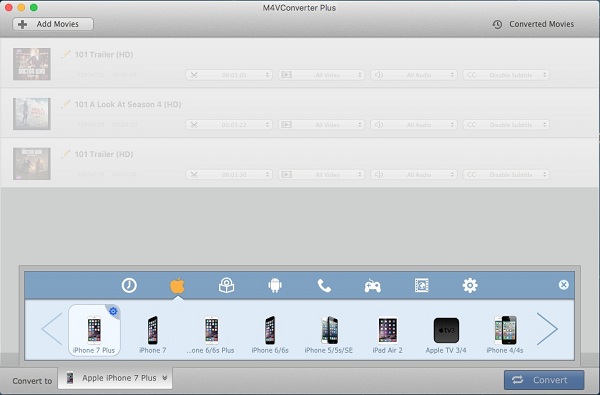
iphone7-plus-preset
Step 4. Click Convert button at the bottom-right corner to start iTunes movies to iPhone 7 Plus conversion progress. Adopts a unique DRM decryption technique, M4V Converter Plus helps you to convert iTunes movies at amazing fast speed and maintain the original quality. Wait a moment, you can quickly find the files in Converted Movies option. Now you can transfer iTunes movies to your iPhone 7 Plus for playback freely.

2015年11月15日星期日

How do I watch my iTunes purchases (tv series & movies) on my Samsung Smart TV?

How do I watch my iTunes purchases (tv series & movies) on my Samsung TV? I found this question on Apple Support Communities. This article is mainly to tell us how to play iTunes purchases (TV shows & movies) on Samsung Smart TV. 
Samsung Smart TV introduce its new experience
Generally speaking, Samsung’s Smart TVs have really good picture quality, so people looking for a good smart TV prefer to pick this brand. Samsung Smart TV has redesigned its TV experience in 2015. With a more intuitive interface, you can quick access to your favorite shows, movies, apps and games. It lets you enjoy your TV trip more convenient.
Hulu, YouTube, Spotify, Amazon, etc. The Samsung Smart TV has a lot of apps making it easier to find the stuff that's relevant to news, videos, sports and so on. But there's a fly in the ointment: Samsung Smart TV supported video format is limited. We can learn from Samsung Smart TV official website that it is compatible with H.264 codec MP4 video format best.
Remove DRM from iTunes videos and play them on Samsung TV
Obviously, we can not play iTunes videos on Samsung Smart TV. Because videos purchased or rented from iTunes Store are M4V format with DRM protection. If Samsung Smart TV users want to play iTunes videos on their television, the only way is to get rid of DRM protection from iTunes videos and convert them to MP4.
Here I recommend you to take a free try on M4V to Samsung Smart TV converter. With it, you can unlock DRM protection from iTunes videos purchases & rentals and convert them to MP4, MOV, WMV, MP3, AVI, etc at amazing speed.
In addition, you can also convert the protected iTunes videos playback on your portable devices, including Sumsung Galaxy S series, Galaxy Tab, iPhone 6, iPad, Xbox 360, Kindle Fire, Google player, etc.
Now you can free download this M4V converter by clicking the following links. Both windows version and Mac version are available.
Mac Version: http://m4vconverterplus.com/M4VConverterPlus.dmg
How to convert iTunes m4v videos to samsung smart tv
Take some steps below will make the iTunes videos to Samsung Smart TV conversion far more enjoyable.
Firstly, install and launch the Samsung Smart TV to MP4 Converter. Now you can see the interface of this M4V to Samsung Smart TV Converter.
Secondly, click Add Movies button to import the videos you want to convert.
Thirdly, choose the video format the Samsung Smart TV support. It is recommended to choose MP4 as the output format. So you can select Same as source for mp4 here.
Last, click Convert button to start conversion once everything is ready.
After conversion, you can copy videos to USB flash drive for watching on your Samsung Smart TV with ease.

2015年11月10日星期二

ITunes to Nexus 5X – How to play iTunes movies on Google Nexus 5X

Google-Nexus-5X
The Google Nexus 5X offers great performance, wide carrier compatibility, great pictures, an excellent fingerprint sensor and a relatively small, lightweight chassis, all for a fairly low price. If you want to buy an android phone, Google Nexus 5X is an ideal choice.
With large screen, Nexus 5X is also a good video-watching smart phone. However, Nexus 5X supported video formats are limited. We can learn from Google official website that Google Nexus 5X can support the MP4, AVI, WMV and DivX video formats best.
And if you purchased a lot of movies and TV shows from iTunes Store and want to play them on Nexus 5. You must get an iTunes to Nexus 5X Converter help you.
How to play iTunes movies on Nexus 5X smoothly
M4V Converter Plus is an all-in-one iTunes to Google Nexus Converter. With it, you can remove DRM protection from iTunes movies, TV episodes or music videos, and convert M4V to MP4, WMV, AVI and any other plain video formats.nexus5012The iTunes to Nexus Converter can support converting iTunes movie purchases and rentals. In this way, you can keep iTunes movies for longer time and share them with everyone. It also enables you to convert iTunes M4V DRM-protected videos to Samsung Galaxy 6/Edge, LG G4, HTC, Nexus 9/6P, Sony PS3 and other devices.
Now you can free download the iTunes to Nexus 5X Converter for Mac OS X or Windows platform. And we can learn the following tips about how to convert iTunes movies to playable on Google Nexus 5X on the go.
Step 1: Download and install the iTunes to Nexus 5X Converter. Here we use M4V Converter Plus for Mac version. If you are a Windows user, you can go to download the Windows version click here.
Step 2: Launch the M4V Converter for Nexus 5X, and you will see the clean and simple user interface. You can click Add Movies to import the videos from iTunes library. You can also drag the video files in batch directly.2d76d-screenshot
Step 3: Select the appropriate format for your Nexus 5X. Here we can choose Same as source for MP4. Because MP4 is the best format for all the portable devices.mp4-outputStep 4: After all settings done, you can click Convert button to start the iTunes movies to Nexus 5X conversion process.
Now you can play all iTunes movies on Nexus 5X anytime and anywhere. What are you waiting for? Have a try now!

2015年7月27日星期一

How might one convert a DRM protected M4V file to a MP4 file

“I have a couple of files from iTunes that I’d really like to put on a flash drive to give to a friend, who wants to put it on her Android tablet. I have tried multiple options, but I have come to the conclusion that I must be overlooking something elementary.” Question by David Hallengren from makeuseof.com
Many iTunes users might have the same problems with David: they want to put their purchased or rented movies from iTunes Store on their android devices. And they also want to share their iTunes playlist with their friends.
The limitations of DRM protected iTunes videos
They may failed like David. What does David want to overlook? DRM, more accurately, digital rights management, is a set of access control technologies, including copy protection technologies, that are used by hardware and software manufacturers, publishers, copyright holders, and individuals with the intent to control the use of digital content and devices. 


Apple's FairPlay DRM is applied to EPUBs and can currently only be read by Apple's iBooks app on iOS devices.
How can we settle these problems? So easy. Just remove DRM protection from iTunes M4V videos and convert these M4V files to MP4. The plain MP4 video format is the most suitable format for Android tablet.
How might one convert a DRM protected M4V file to a MP4 file? M4V Converter Plus is the right one for you. With this M4V to MP4 converter, you can easily remove DRM protection from iTunes protected M4V files and convert M4V to MP4 with faster than other converter programs in the market. You can also directly convert protected M4V videos to iPhone, iPad, PSP, Nexus, Smart TV, Samsung Galaxy S series and any other android devices.
Convert M4V to MP4 with M4V Converter Plus in three Easy steps
M4V Converter Plus for Mac/Windows has excellent quality and can finish the conversion at a very fast speed. In the following article I'm going to tell you how to convert protected M4V to MP4 file on Windows. If you are a Mac user, you can refer to the tips by clicking the link. http://m4vconverterplus.com/m4v-to-mp4-converter/m4v-files-to-mp4.html
1.       Launch this M4V to MP4 converter for Windows. Click “Add Movies” button to select the M4V files you want to convert. You can also drag the M4V files directly to the main window. When the iTunes videos added, you can see the media file info such as the file name, resolution, output length, etc.

2.       Click “Convert to” drop-down list and choose MP4 as the output format.

In addition, the M4V to MP4 converter has variety of device presets. If you want to put the converted files on your iPad, iPhone (iPhone 6 included), iPod, Apple TV or other popular portable devices, you can select the name corresponding to the devices you have.
3.       After all settings done, click “Convert” button to start the M4V to MP4 conversion.


2015年7月12日星期日

M4V Converter Plus can support iTunes 12.2 perfectly

#iTunes 12.2 Apple has released iTunes 12.2 with Apple Music and Beats 1 support. M4V Converter Plus can support iTunes 12.2 perfectly. 
The new features of iTunes 12.2
Apple released a new version 12.2 of iTunes to its media player iTunes for users of OS X Yosemite and Microsoft Windows. The upgrade allows users to access the new Apple Music service and the Beats 1 radio service on their desktop computers.
iTunes 12.2 also offers iTunes users a free taste of the subscription service: For three months, users have access to a free trial of the music streaming, collation and discovery services, as well as the Beats 1 global live radio service with multiple stations that comes with an Apple Music membership. Apple will also be introducing its second attempt at an iTunes-based social network.

M4V Converter Plus can work on iTunes 12.2
M4V Converter Plus is an all-in-one DRM removal software as well as iTunes protected videos converter. It allows both Mac and Windows users to remove Apple DRM copyright from iTunes movie purchases & rentals and convert them to plain MP4, MOV, AVI and other popular video formats. It also can support iTunes 12.1 perfectly.
The latest version 12.2 of iTunes has released last week. Many iTunes users must upgrade their iTunes to the new version as soon as possible, including me. In most cases, users can use the M4V Converter Plus for iTunes 12.2 smoothly.
If you came across something error after your iTunes upgraded to version 12.2. Try some ofthe steps mentioned below.
STEP 1. Choose Preferences. Then click Advanced and check on the box beside "Share iTunes Library XML with other applications".
STEP 2.     Quit iTunes.
STEP 3.     Launch M4V Converter to have a try.


How to use M4V Converter plus for iTunes 12.2
1.       Upgrade M4V Converter plus and iTunes to the latest version. If you are new here, you can find the M4V Converter Plus download page at http://m4vconverterplus.com/index.html. And launch it.
Note: if you run the M4V Converter Plus, the iTunes 12.2 will open automatically.


2.       Click Add Movies button to import the iTunes videos you want to convert. After the Advanced Preferences settings, you still can’t find any M4V video in converter, please drag the M4V files to the converter directly from your file folder.


3.       Click the Convert to drop-down list, here are various output formats available to choose. Such as MP4, MOV, WMV, WMA and so on. Besides, the profile displays a variety of mobile devices, and each device has one or more popular output formats such as MOV, MP4, AVI, FLV, SWF, 3GP, etc. You can select the output formats as you need.


4.       Click the Convert button to start the M4V Conversion progress. 

2015年7月7日星期二

How to convert iTunes movie rentals & purchases to Facebook/Daily Motion/YouTube video list

Have you ever thought to upload your iTunes purchased movies to your Facebook, Daily Motion, YouTube? Want to own your iTunes movie rental and share them online?

The best M4V to web video converter – M4V Converter Plus can help you. With it, you can convert iTunes movie purchases & rentals to html 5 MP4 video, flash, SWF, and you can also convert iTunes protected M4V to YouTube, Facebook, Daily motion, Flickr and other video website compatible video format.

In addition, M4V Converter Plus is also a M4V to MP4/MOV/AVI/WMV/AAC/WMA Converter. With clean, simple, easy-to-use interface, it can remove DRM protection from iTunes movie purchases and rentals, then convert them to unprotected MP4/MOV/AVI/WMV/AAC/WMA, etc.

How to convert iTunes movie rentals & purchases to Facebook, Daily Motion, YouTube
STEP 1: Free download M4V Converter Plus.

STEP 2: Install and launch it, you will see the easy-to-use interface.


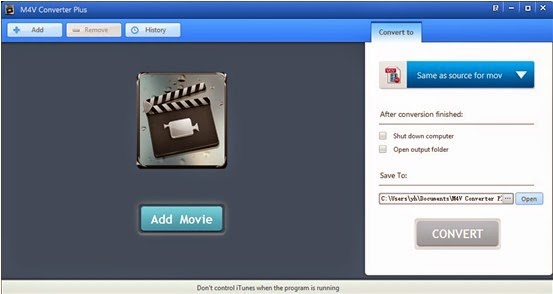
Interface of M4V Converter Plus for Win

After you have installed M4V Converter Plus free trial version, you can only convert 3 minutes of each videos you want to convert. If you have bought a license, and have got your key code. You may click here to read how to register to be full version.

STEP 3: Add the M4V files to convert

You can click the “Add Movies” button in the top-left to add the video files you want to convert. The software will open the iTunes movies library by default. Select the files and then click “OK“.

STEP 4: Set the output format

In the “Profile” drop-down list, the software supports multiple output formats, select the “Web video“. The video format you can choose include: Universal Flash Video Movie, Universal SWF video, Universal Flash F4V video, html 5 MP4 video, Facebook H264 video, Daily Motion H264 video, Flickr H264 HD video, etc. Of course, you can also set the output files parameter and other settings before conversion.


Output format settings


STEP 5: Click “Convert” to start converting M4V to web video .

M4V Converter Plus official website: http://m4vconverterplus.com/

System Requirement:
Windows XP or later version
Mac OS X 10.8 or later version


2015年4月20日星期一

M4V Converter Plus for Win V5.1.2 gets more stable

M4V Converter Plus Inc has released the new version V5.1.2 of M4V Converter for Win on Apr 09, 2015. In the new version, there are some changes you can find as follows:
Fix the iTunes crash problem while convering on Win 8.
Add Version info into the log.
That is, M4V Converter Plus for Win V5.1.2 gets more stable and users use M4V Converter Plus for Win to convert iTunes movies with less problem. Whether you purchased movies from iTunes Store or rent movies from iTunes Store, you can use M4V Converter Plus for Win to remove the DRM and delete the limitations and convert M4V to MP4, AVI, MOV and other popular video formats.
What can M4V Converter Plus for Win do for you
Remove the DRM from the protected videos;
Convert iTunes purchased movies to MP4
Convert iTunes movie rentals to unprotected video format
High conversion speed and easy option.
More info about the M4V Converter. you can find from
About M4V Converter Plus Inc.
M4V Converter PlusInc. is a software company that offers iTunes M4V video conversion solutions. With expertise and experience in iTunes video converter tools, its mainly products M4V converter software do well in converting m4v video you purchased or rent to QuickTime MOV, iPod, iPhone format with high speed and great quality.
Contact Info:
Name: Amy Green
Address: P.O. Box 1568, Cortaro, AZ, United States of America
Zip code: 85652
Email: market@m4vconverterplus.com

Website: http://m4vconverterplus.com 

2015年3月1日星期日

How to convert purchased TV shows like the Walking Dead from iTunes

Wanna convert purchased TV shows from iTunes to enjoy unlimited? Try M4V Converter Plus for Win. This software can remove iTunes DRM by converting the iTunes videos with excellent output video quality, so that you can play them on devices.
Add purchased TV shows
Please click the Add or Add Movie button, then the Add Movie window with Movies as default pops up.

Click the Sources drop-down list to select TV Shows and the purchased TV shows will display in the below list.


Then you can select the purchased TV shows and click OK button to add. You can also drag purchased TV shows to the list directly from your disc or other location. The selected TV shows will be added in the main list.

Customize output format
Choose the files in the list and click the Convert to drop-down list to choose the output format.

You can select all the files (Alt + A) then choose the profile to set all the files into the same profile. In addition, you can set a different profile for each file by clicking the each file profile.

Customize output path
Click the ... button to customize output path. You can also just use the default output folder M4V Converter Plus.

Start the conversion
Click CONVERT button to start converting. Then the Progress window pops up.

Make sure your computer before converting is well authorized with the same Apple ID that you used when downloading the iTunes movies.
Before the status show converting progress, iTunes will be shown and hide itself in a flash, and please don't do anything with iTunes during converting, conversion may failed by occurring an error.
Check History Records
When the conversion is completed, the purchased TV shows with DRM removed will be saved automatically in the history records. Click the History button to show up the records.
You can lick the show in finder icon  to show the converted file in output folder.
With M4V Converter Plus for Win, the purchased TV shows have been removed DRM quickly and easily, and you can enjoy the TV shows with unlimited.